Configure Say Thanks feature
The Configure Say Thanks page allows the Administrator to add values/attribute that illustrate the organization’s core values. Also, admin can add a list of email addresses or select an existing mailing list which are carbon-copied (CC’d) while an email is triggered.
Watch how the Say Thanks feature works!
Watch how the Say Thanks feature works!
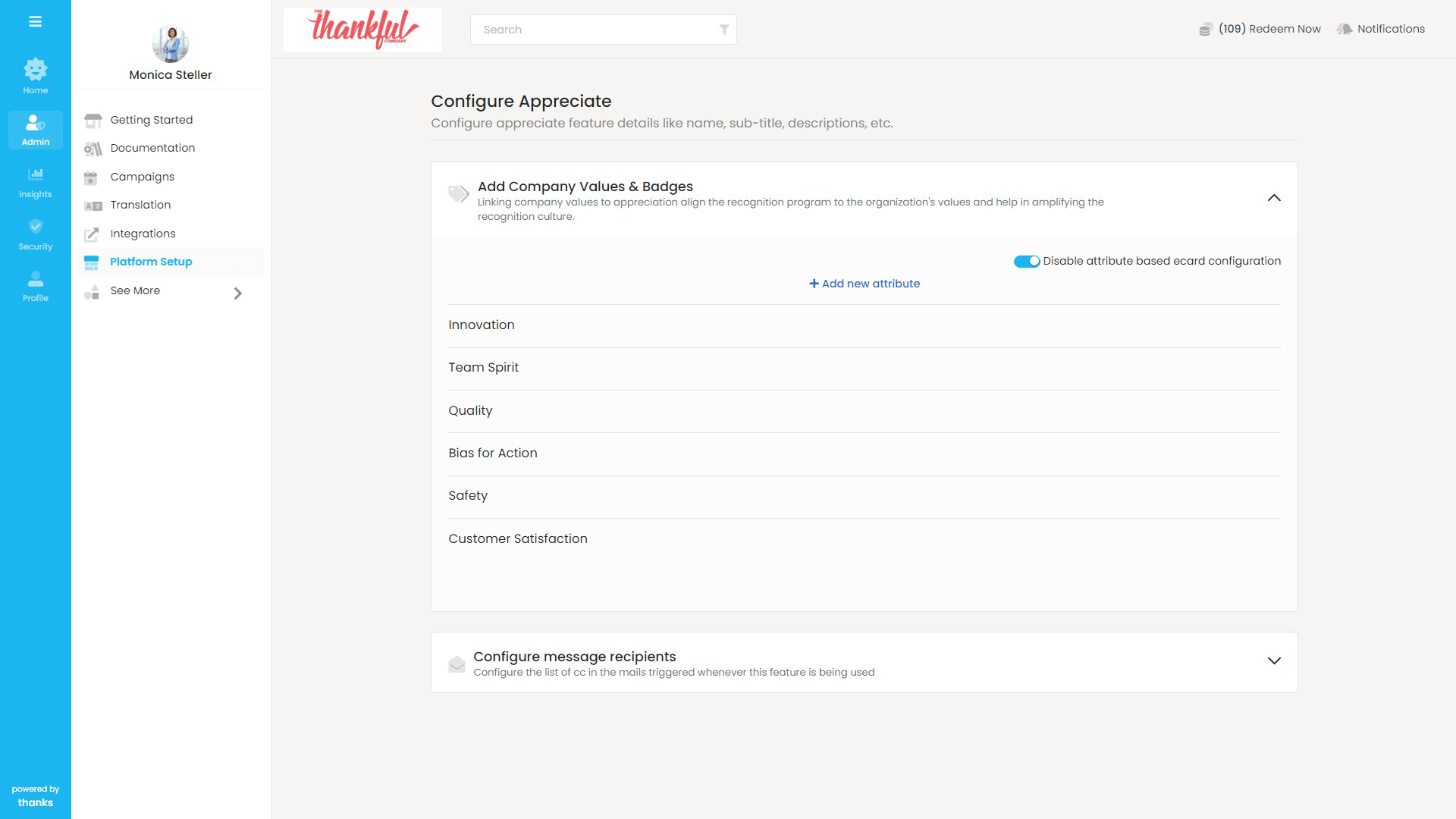
Add Company Values And Badges For An Appreciation
- Login to the Thanks application.
- On the right side of the page, click Admin > Platform Setup > Configure Features
Before adding the attribute make sure that the Appreciate feature is Activated. If the feature is not activated, activate the feature. - In the feature section, click Mange and then click Add company values and badges.
Attributes which are added previously will appear or else it will be blank. - Click Add New Attribute button.
- Enter name and description of the attribute and then click Save.
- For Example
- Name: — Outstanding Performance.
- Description: — When the employee has performed an awesome job or performed beyond the expectation.
- Select the Add eCard checkbox to add an eCard for the attribute and then click Save.
- A popup to add eCard will appear
- On the pop-up click Upload Image.
- Navigate and select the eCard and then click Upload.
eCards provide hundreds of fun and creative ways to celebrate an accomplishment. An eCard is the interactive personal experience which encourages the effort of the employees in the organization. Depending upon the value the employees can send an eCard with or without monetary value. To add an eCard:
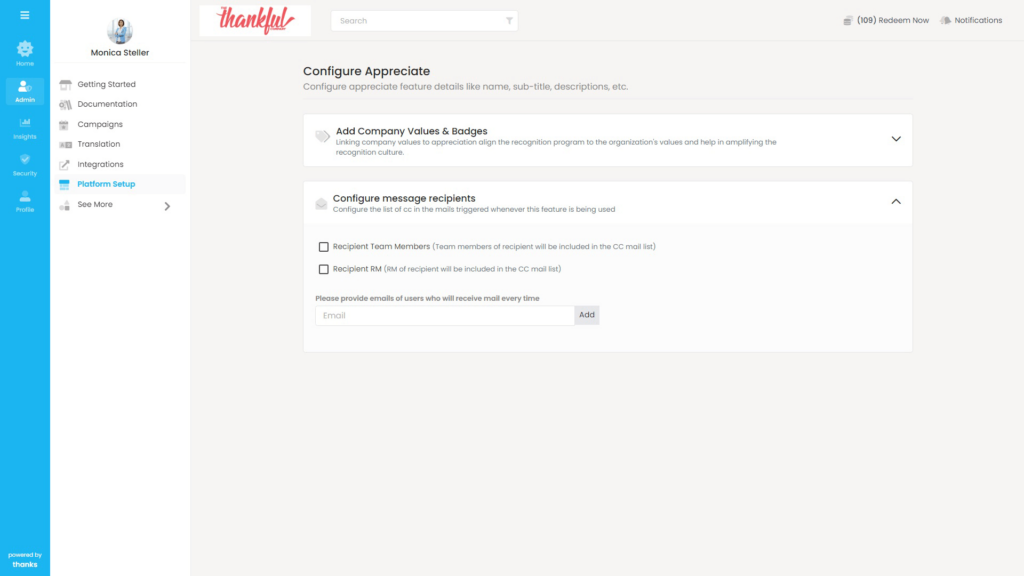
Configure Message Recipient List To A Feature
Configure the automated email notifications by adding a list of the email addresses. The email addresses are added in the carbon-copy (CC) section. Delivers a copy of the email when an employee uses the feature.
For example: If the Administrator has configured Keith Smith email address in the CC Configure section and selected Recipient RM checkbox. Whenever his reportees use this feature a copy of recognition email is sent to Keith Smith.
- Navigate to Admin > Platform Setup > Configure Features tab.
- On the Say Thanks card section, click Mange and then click Configure message recipients.
- Select the required checkboxes to whom a copy of the email must be delivered.
For example: If the Administrator has selected Recipient Team Members checkbox. The recipient team members are included in the mailing list and a copy of the mail will be delivered to them. - Enter the carbon copy (CC) email address and then press Enter or click Add.
Repeat above step to add multiple email address. - Click Save button.
- Optionally, click the X icon next to the email address to remove from the email list.