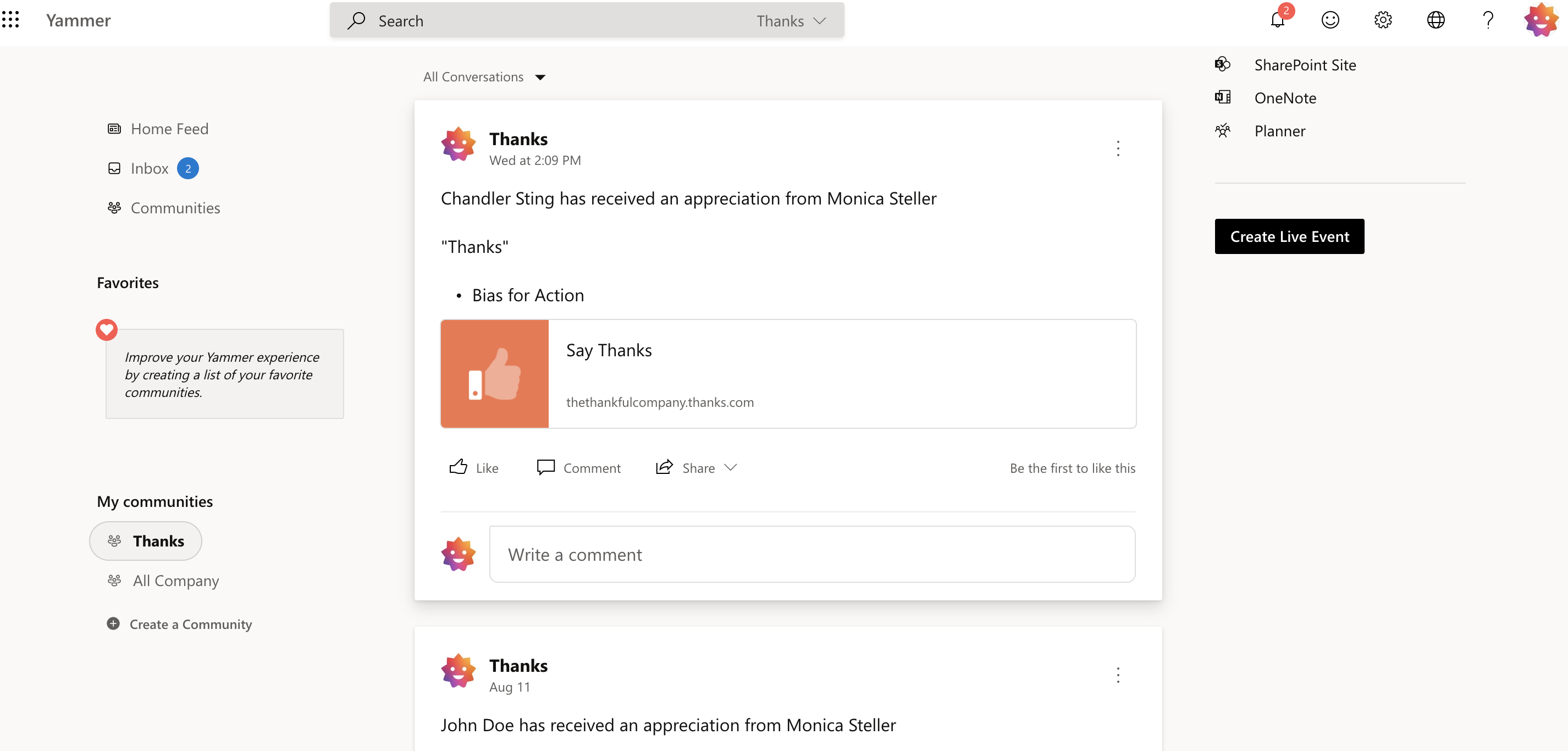
Thanks integration for Viva Engage allows the company to share the recognition posts on their Viva Engage feed. Please note, it is one-way communication. The likes and comments on the Viva Engage posts will not reflect in the Thanks web application.
The default Thanks features that would be configured to Viva Engage are Say Thanks, Nomination, SPOT and Gift. The admin can customize the integration at a later stage with the feature options available in the Thanks platform.
How to Set up (Viva Engage Admin)
1) To set up Viva Engage integration, start with creating a new user account on Viva Engage that will integrate with the Thanks web application. All the Thanks updates will be posted on Viva Engage feed on behalf of this user.
Note: We recommend using a Non-Employee Viva Engage user account to avoid issues with the integration in case the connected Admin’s Viva Engage account is terminated/removed.
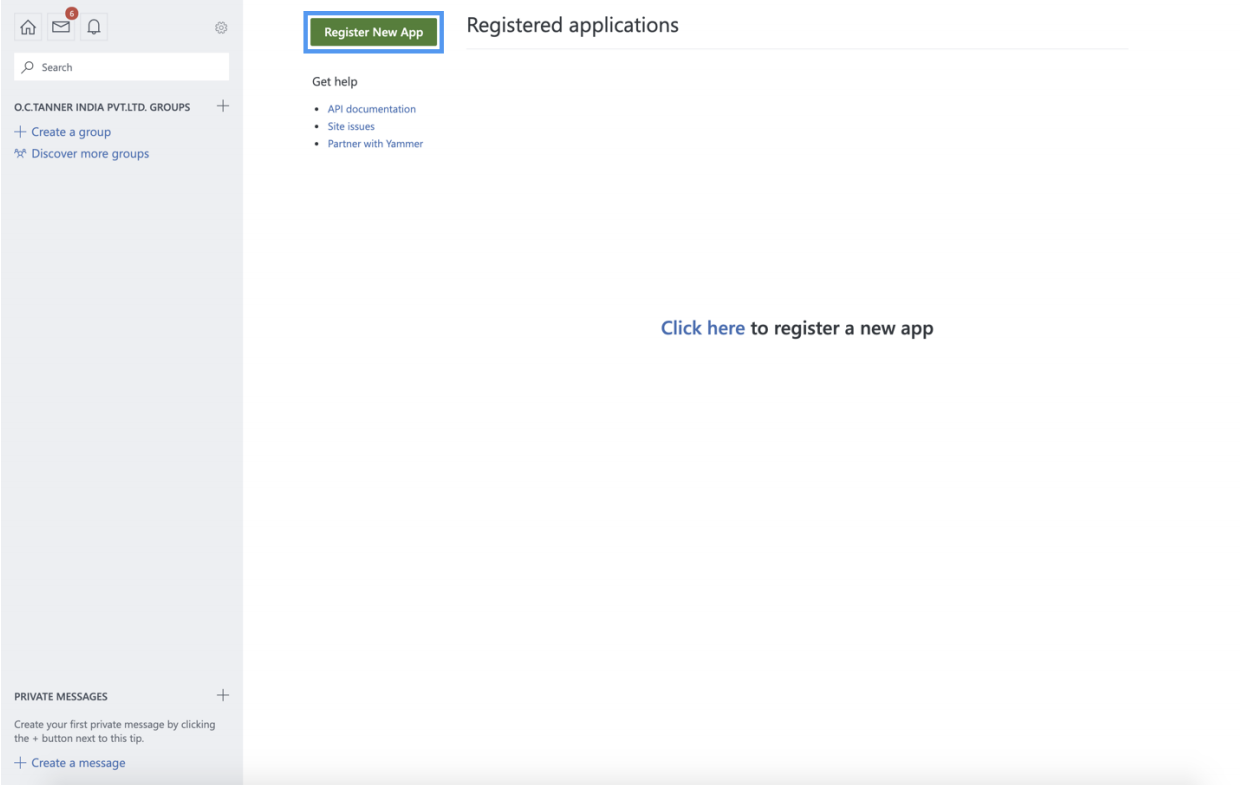
Log in to the Viva Engage instance using the credentials created in the above step.
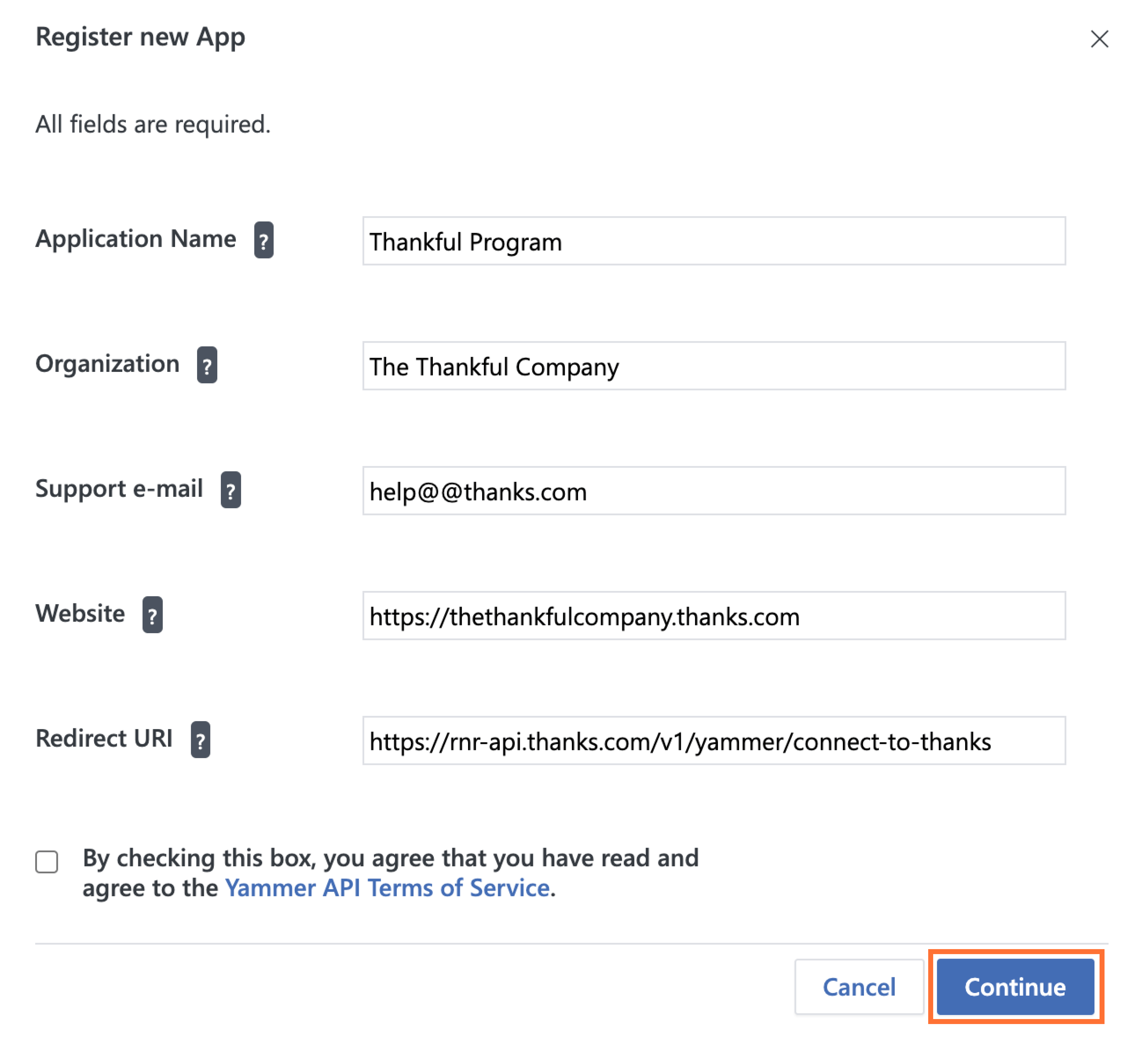
3) Accept the Viva Engage API Terms of Service and click on the Continue button.
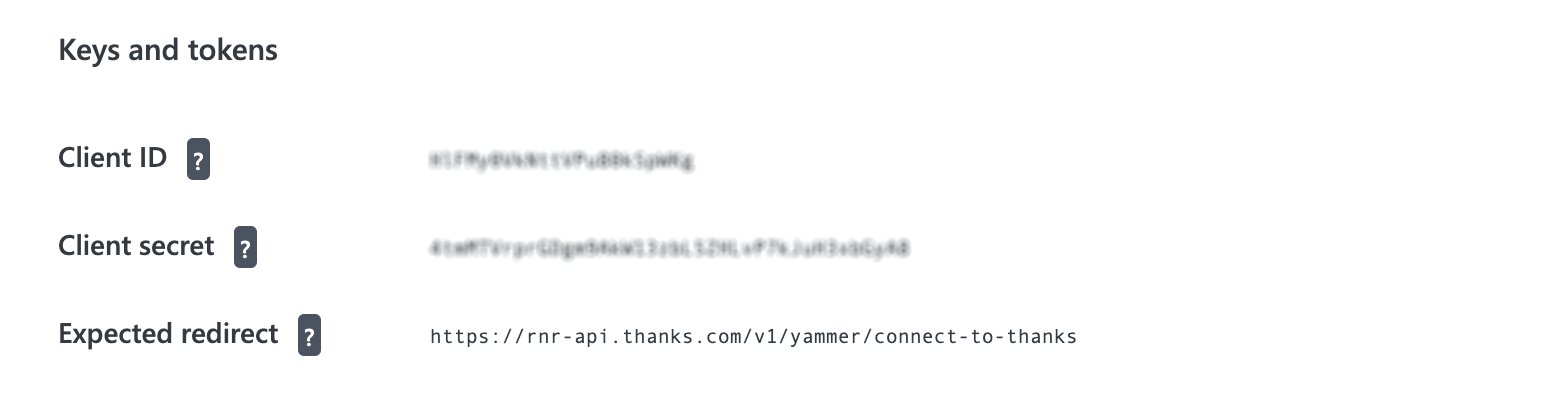
This will generate a Client ID along with a Client Secret.
Set Up (Thanks Admin)
4) Login to the Thanks web application and go to the Admin section.
5) Select Integrations.
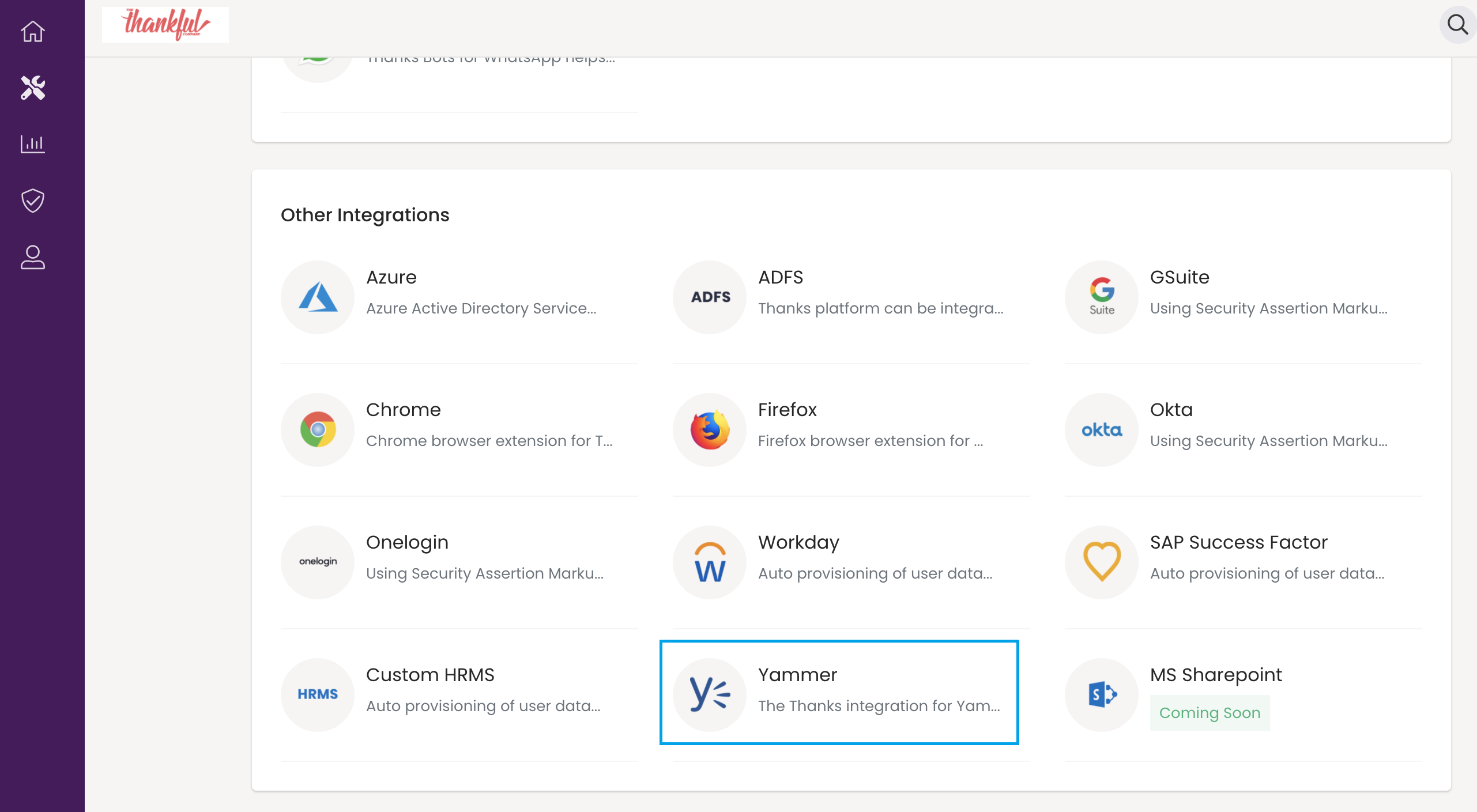
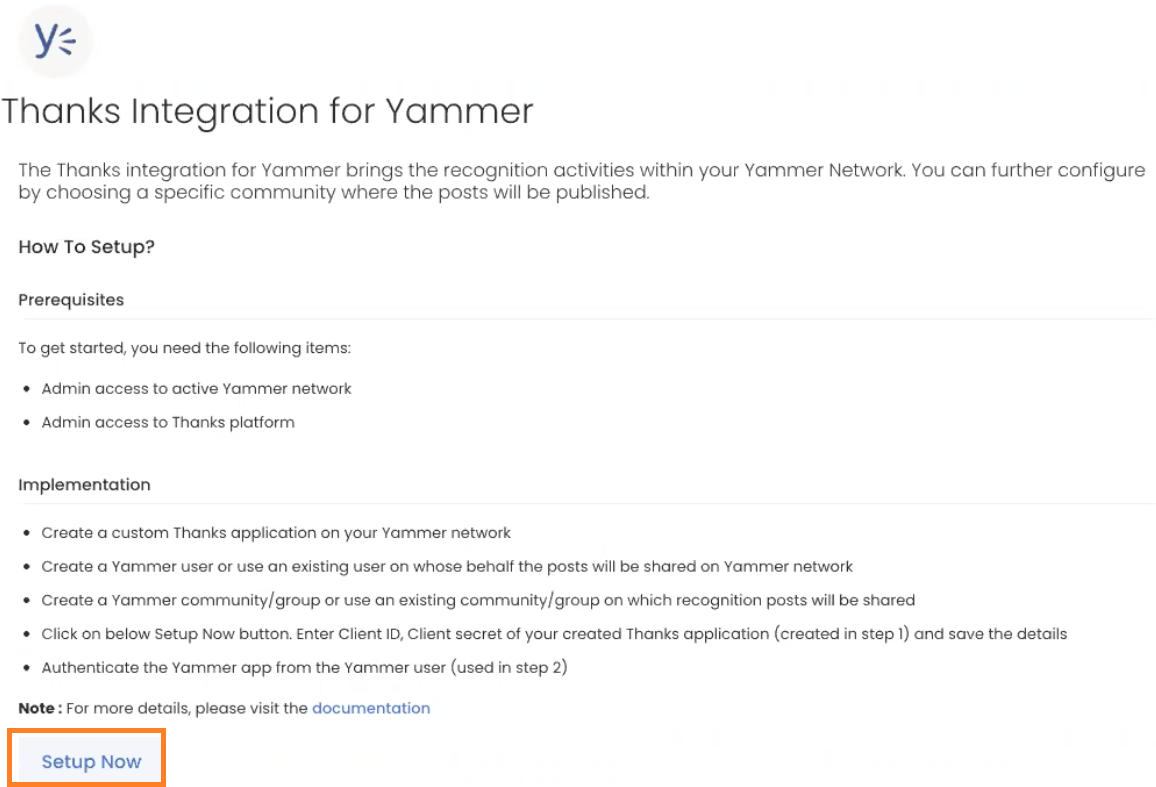
6) Go to the Other Integrations section and select Viva Engage.
7) Click on the Setup Now button.
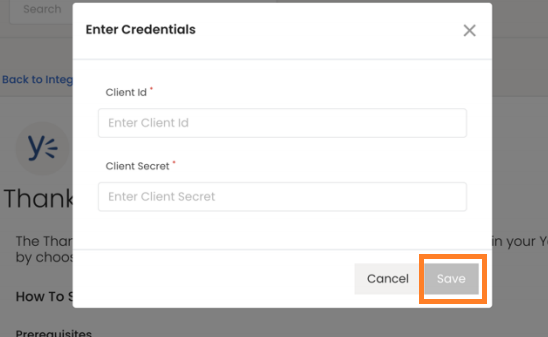
8) Enter the Client ID and the Client Secret.
Hit Save.
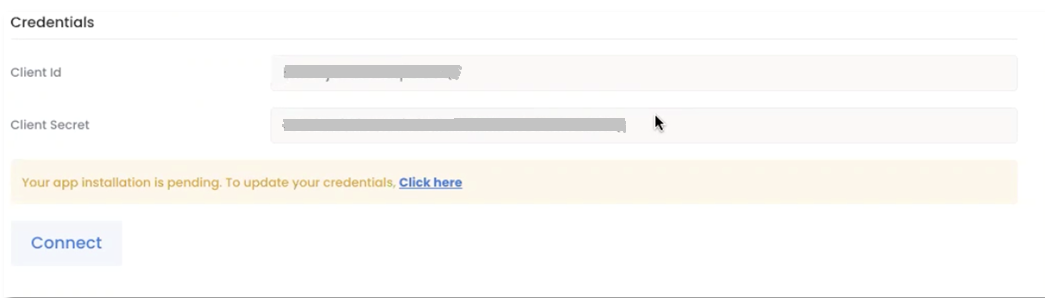
9) Review the credentials and click on the Connect button.
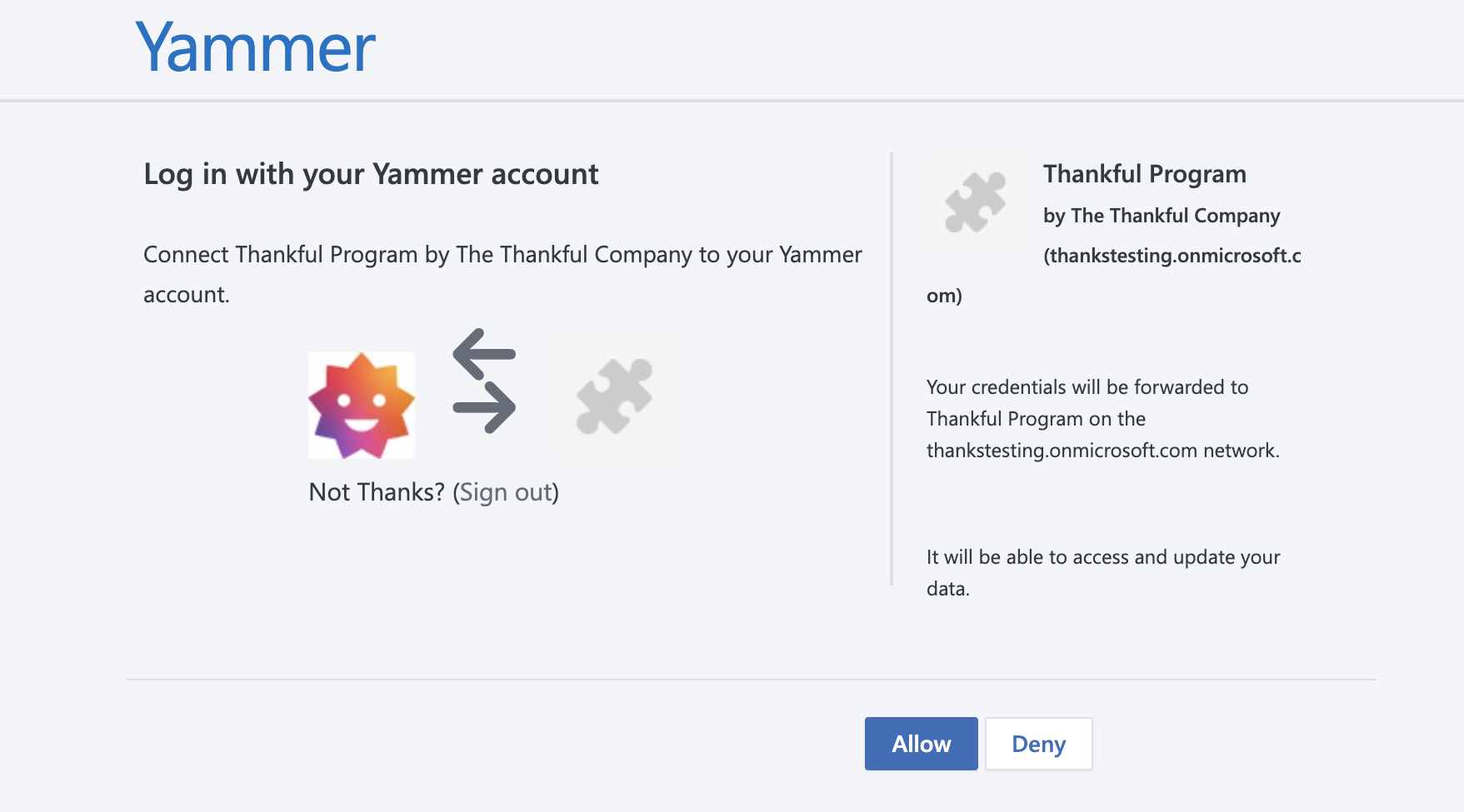
Verify the Viva Engage user (this will be the user created in Step 1) which will be connected to the created application. All the posts will be shared on the Viva Engage feed by the user mentioned on the authorization page.
10) Click on Allow to grant the user access to the Thanks application.
Once, you have authorized the user, you need to configure the integration to complete the setup.
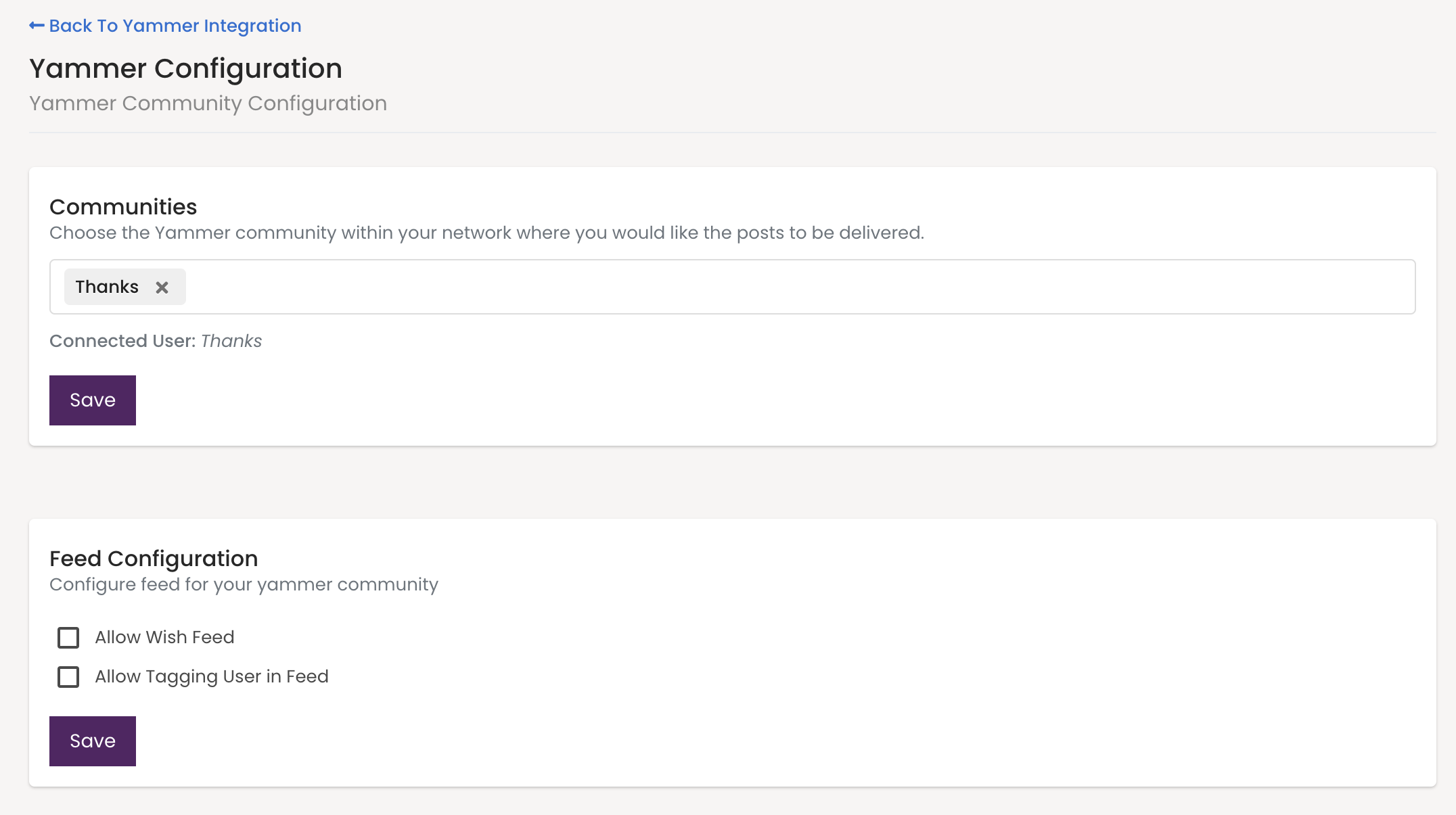
11) Select the Viva Engage group/community where you would want the Thanks posts to appear on Viva Engage .
Note: In case of a private group/community, the user created in the first step should be added as a group member.
12) To configure the Wish feature post to Viva Engage , select the respective check box. Do the same if you want to tag users in the feed.
Hit Save once done.
Viva Engage – Feed View
If you are facing any issue, please reach us at help@thanks.com