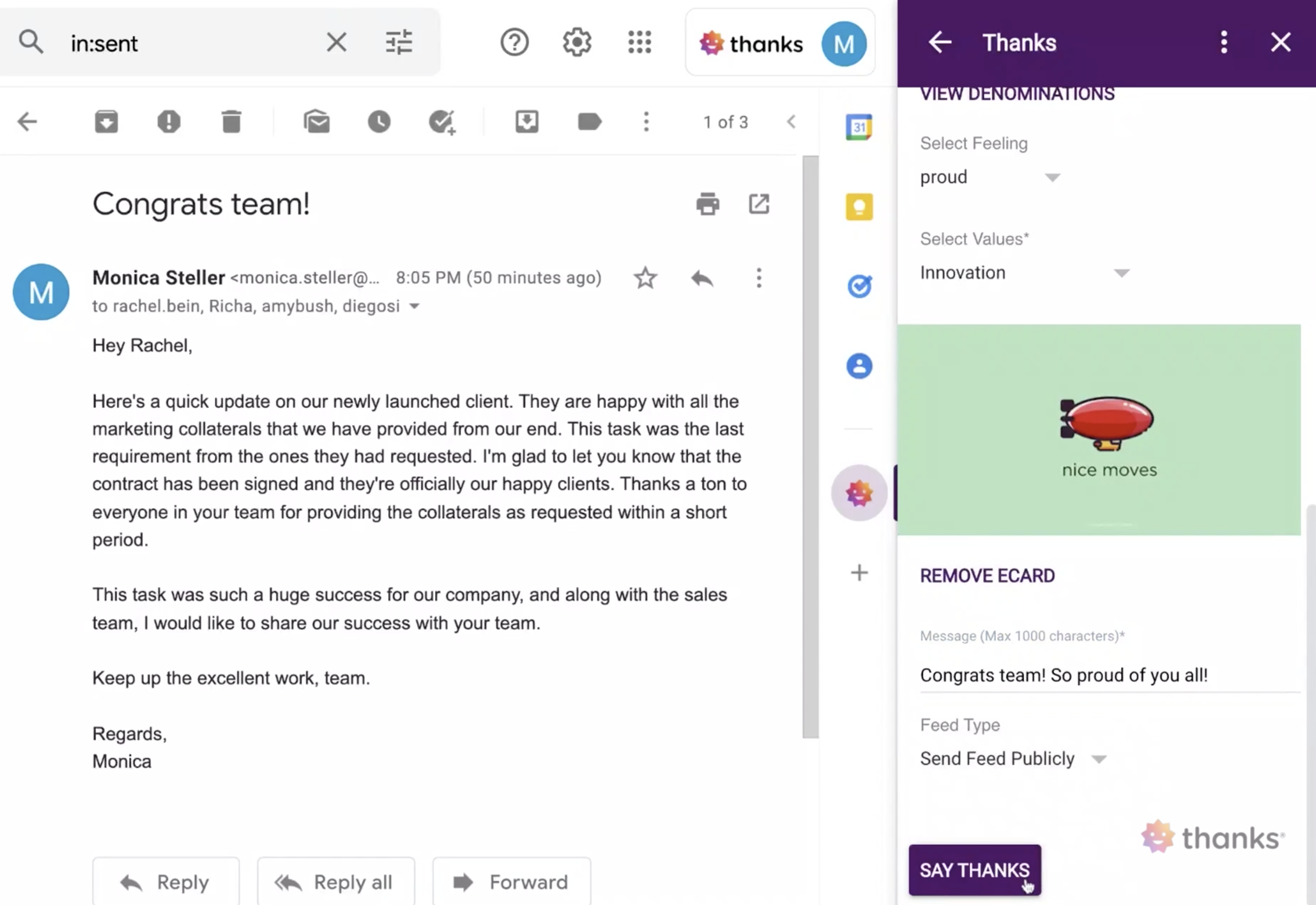
Connect Thanks to one of the most popular email services, Gmail! With Gmail integration, you can now recognize your colleagues within your mailbox.
Sign into the Thanks plugin on Gmail using Single Sign-on
Send instant recognition to peers without entering the Thanks platform
Set up for Admins
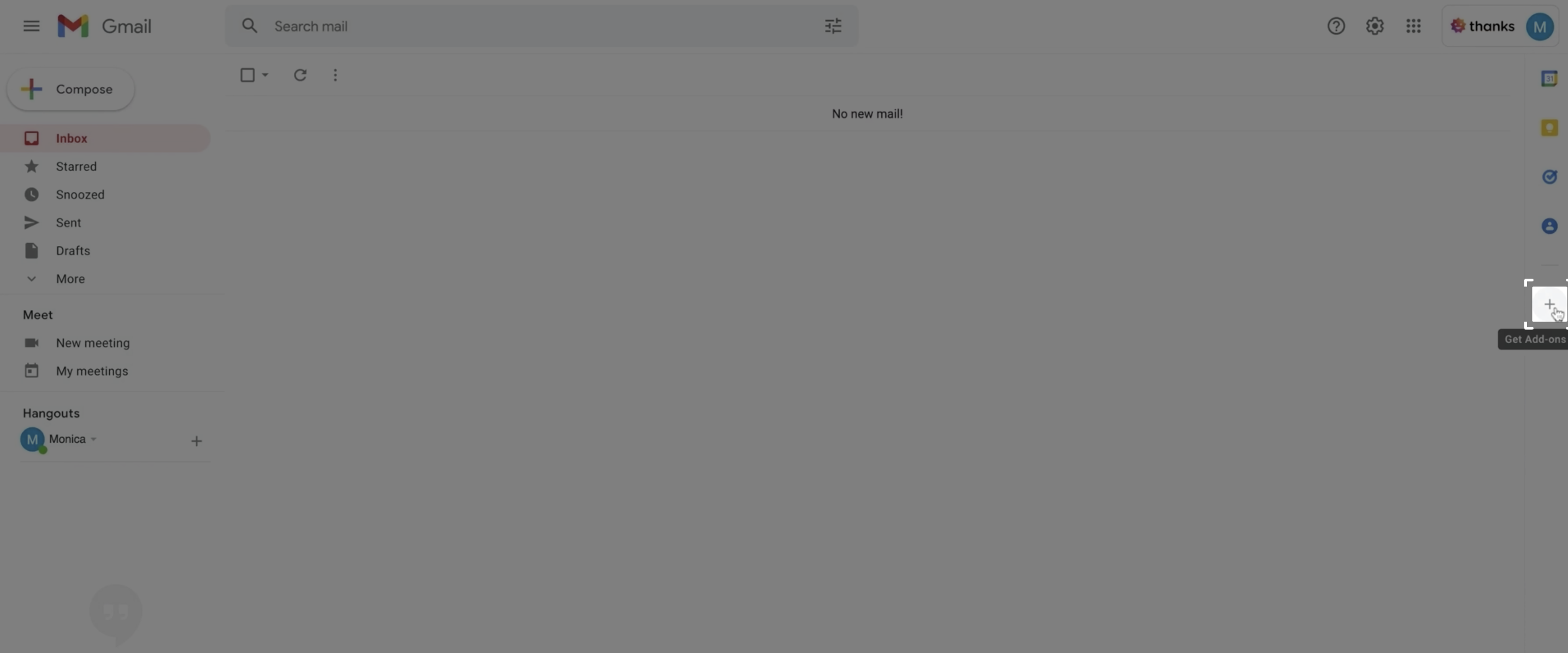
Step 1: Login to your Gmail account and click on the ‘Get add-on’ button as shown in the image.
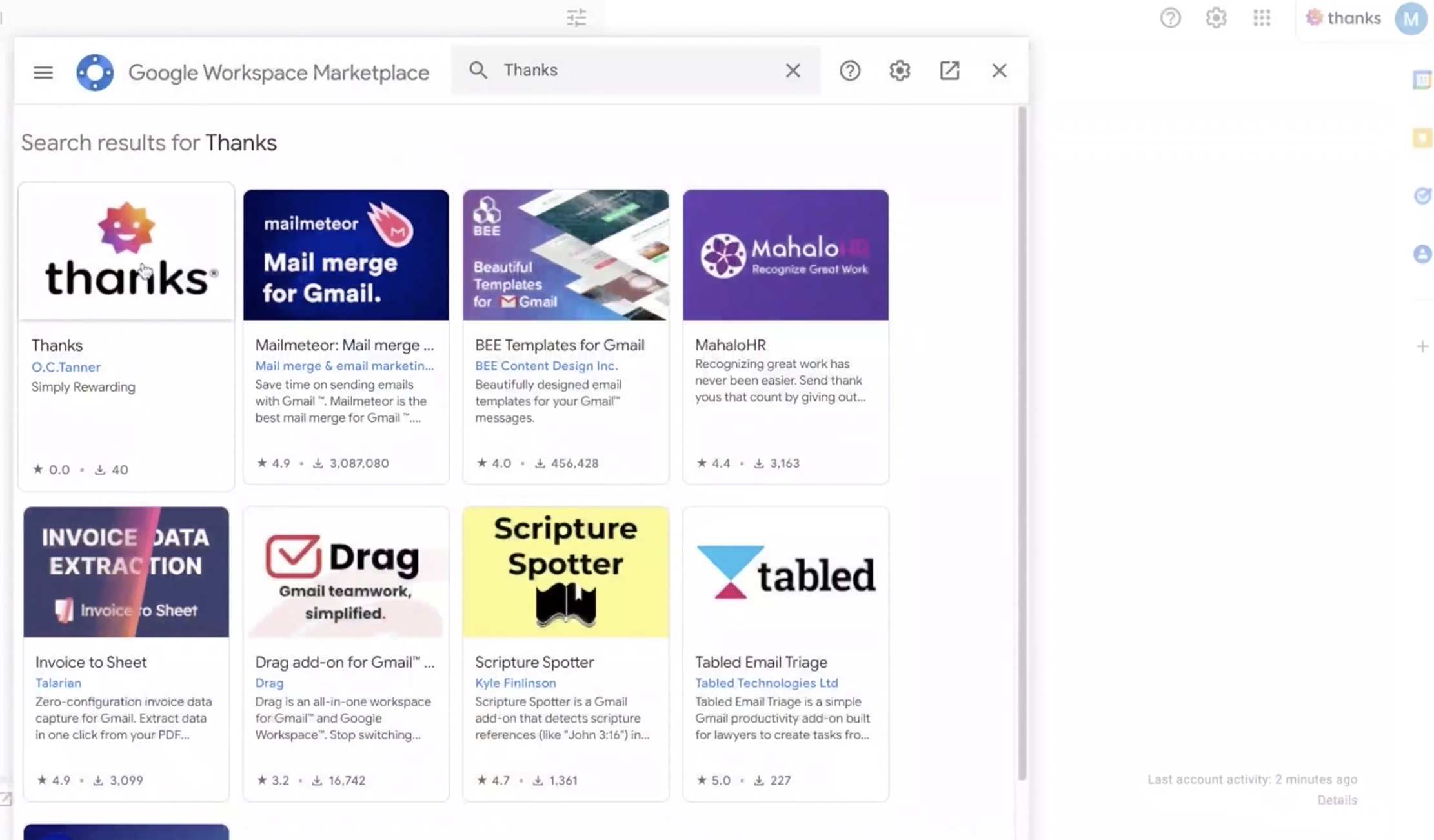
Step 2: From the wide range of add-ons available in the Marketplace, search for Thanks in the search bar at the top and click on Thanks once it appears.
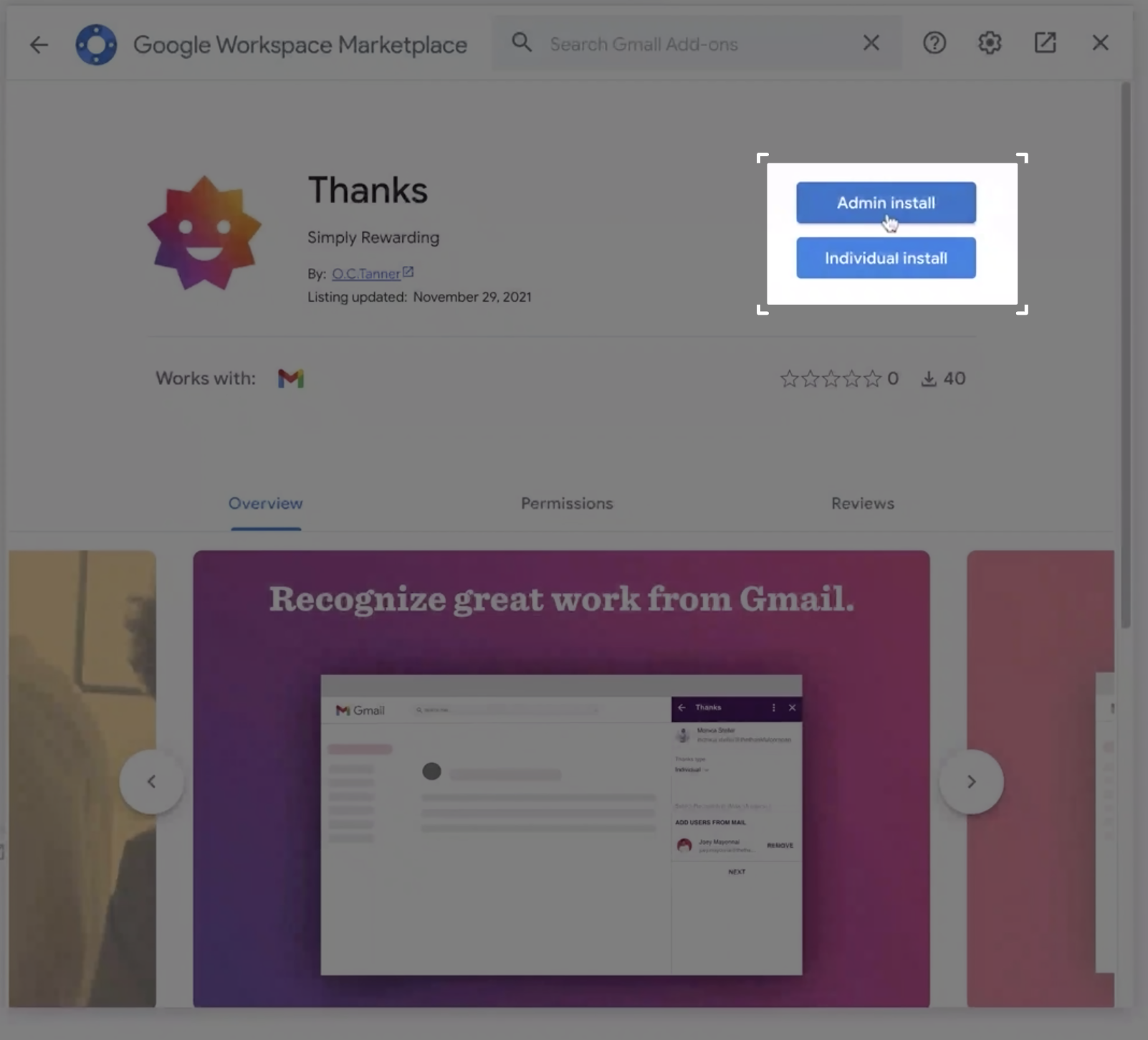
Step 3: There are two ways to install the app –
At individual level
At admin level
Step 4: For admin installation, select the admin install button. Read the instructions and hit Continue.
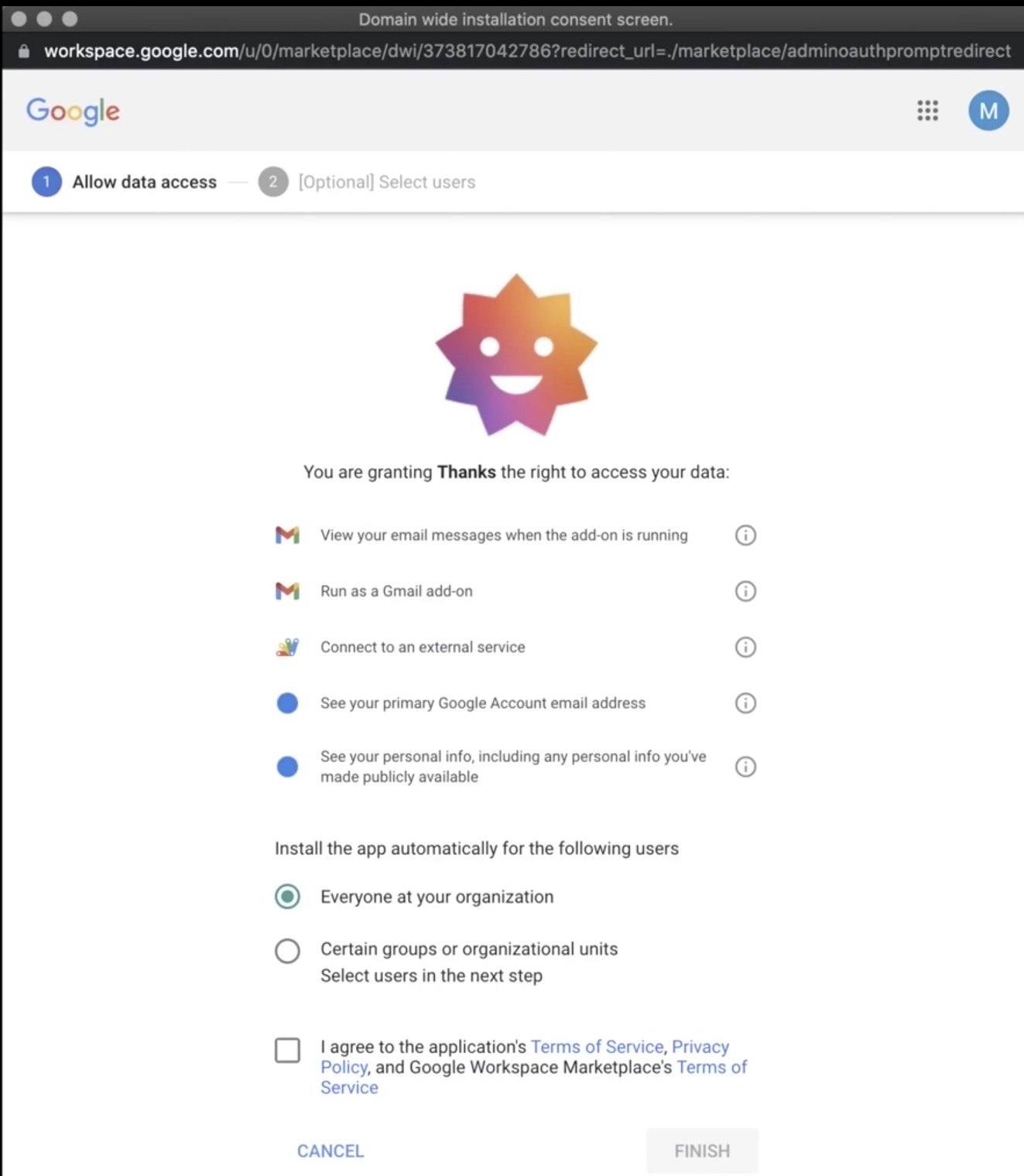
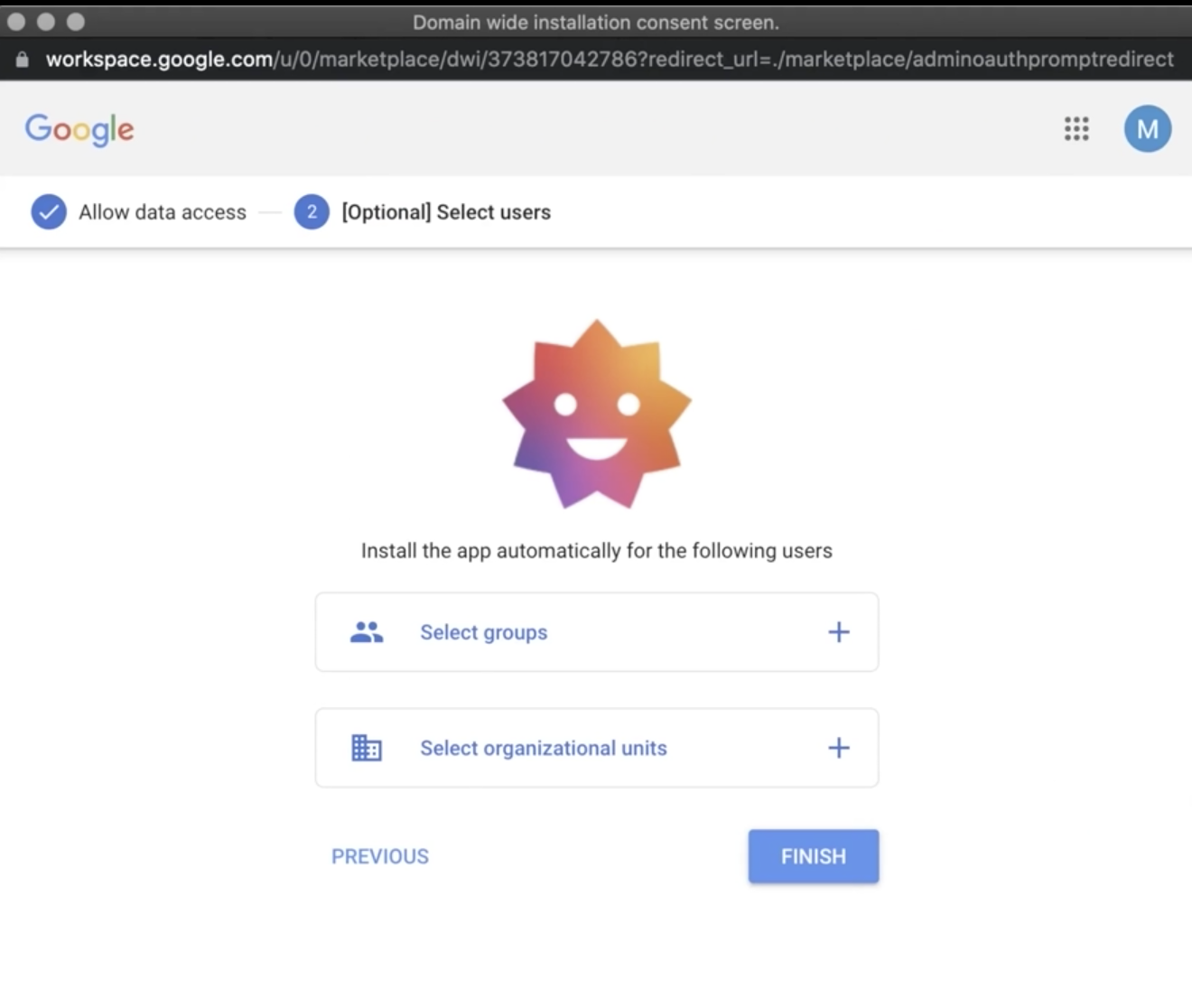
You would be prompted with a pop-up window to grant access. Admins can configure the Gmail integration for the entire organization, specific groups, or selected users.
Step 5: Read the terms and conditions, and the privacy policy. Once done, click on I Agree and hit the Next button.
Step 6: Select the group you want the plugin to install for and click on the Finish button.
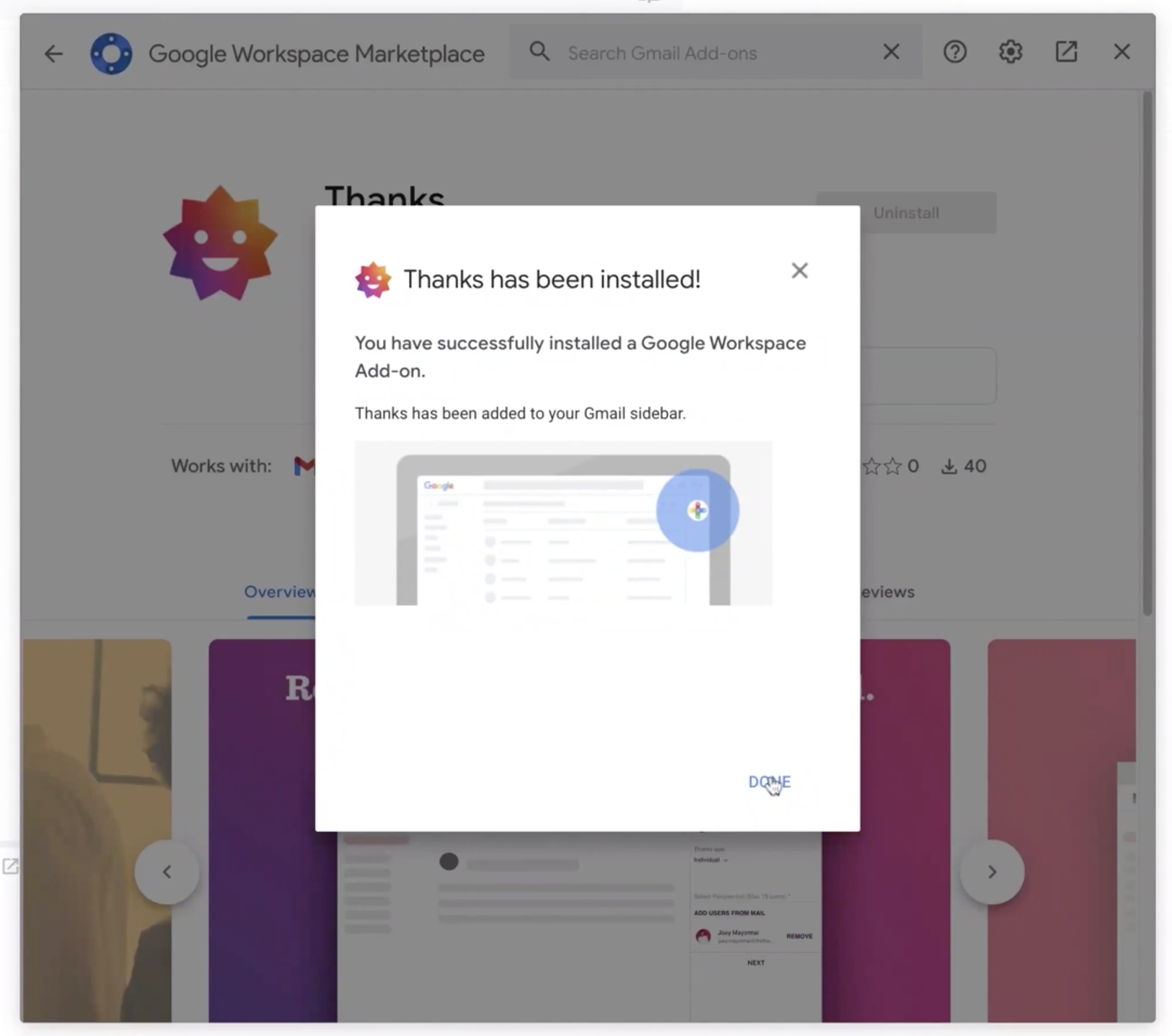
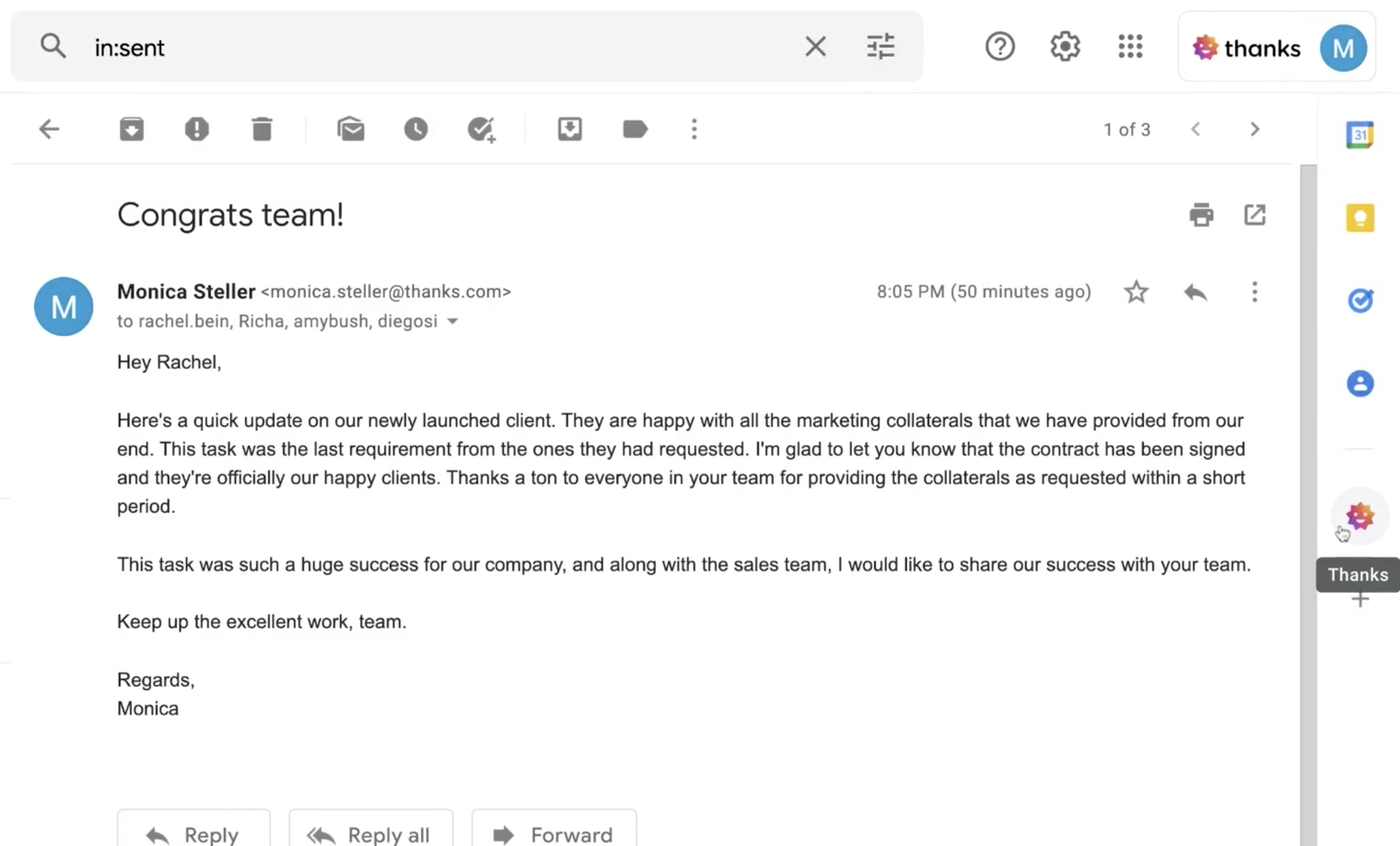
You have successfully installed Thanks add-on to your Gmail. Users will now be able to see the Thanks icon on their home ribbon.
How to send recognition using the Thanks plug-in
Open an email in your Gmail inbox to get started.
1) Click on the Thanks icon seen on the Home ribbon.
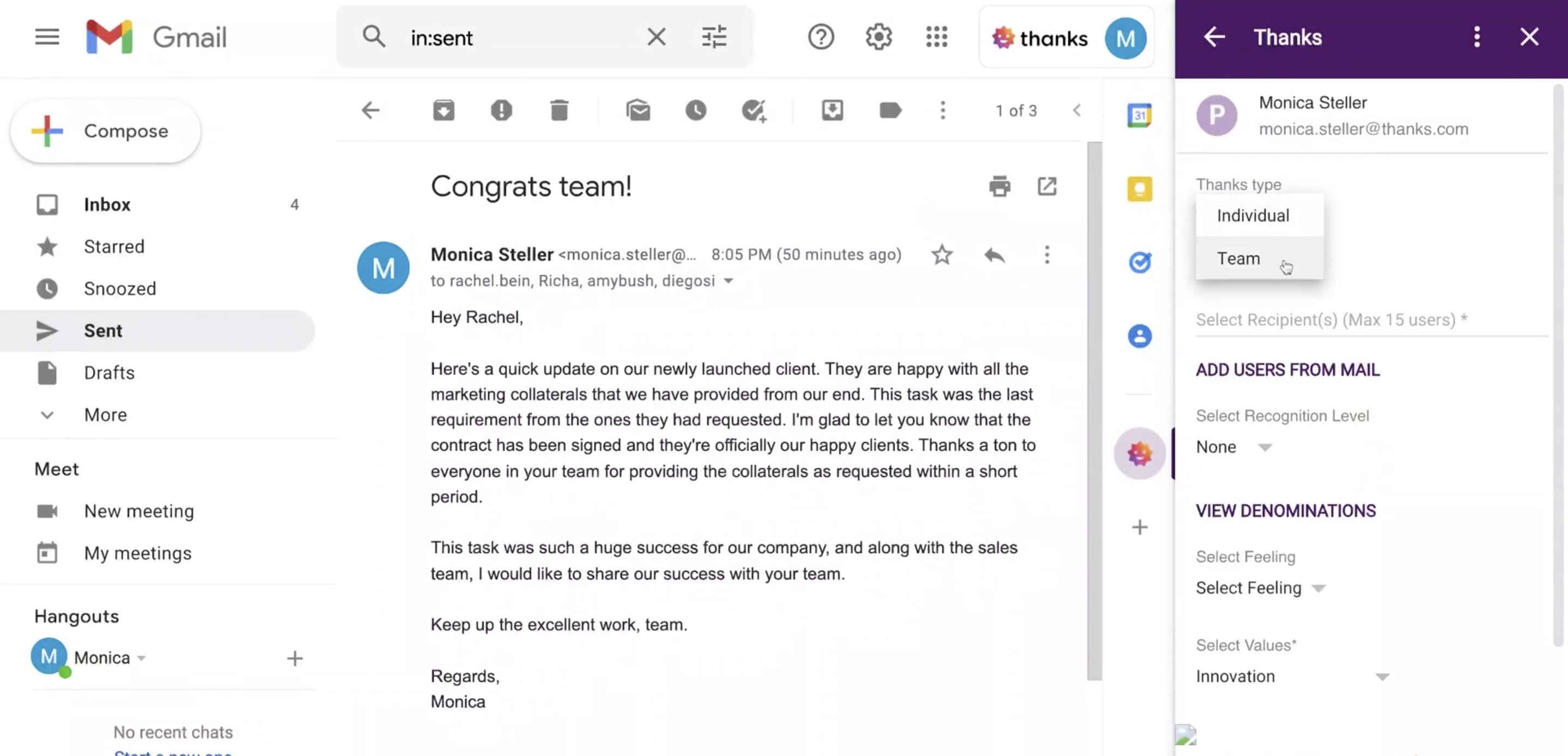
2) Select the type of recognition you want to send – individual or team.
3) Start adding users from the recipient list as seen on the mail thread. you can also add recipients who are not a part of the mail thread by searching their name or email id.
4) Select the recognition level. Add emotions, company value and corresponding e-card.
5) Type in the message and select you want the recognition to be sent publicly or in private mode.