Thanks Integration for Teams

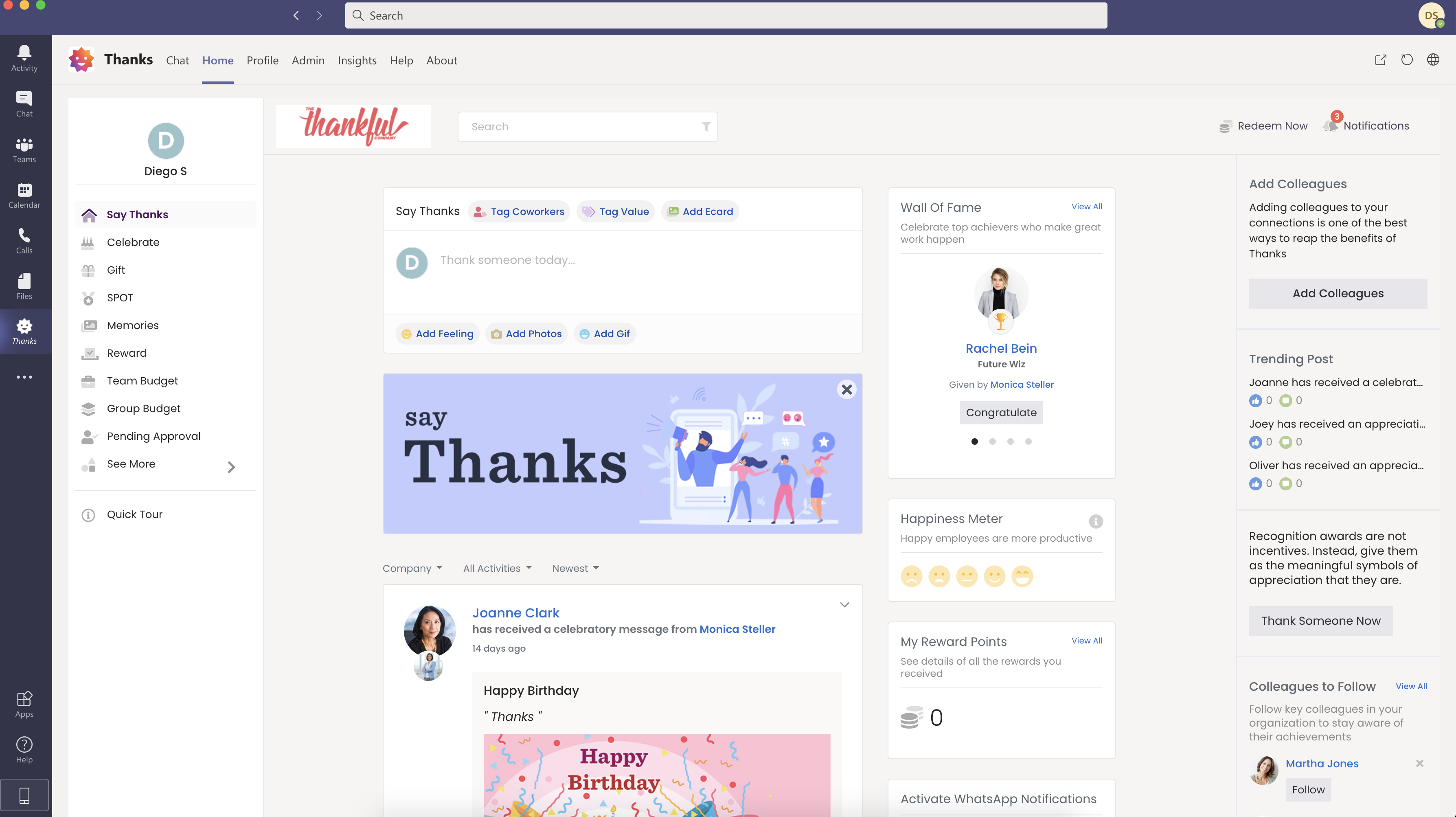
The complete Teams native functionalities allow users to experience the full platform features of Thanks without leaving Teams application.


How to set up

 The office 365 admin can push Thanks app for all the users in the organization.  However, individual users can also add Thanks app to their personal tab depending on the company policy.

Visit AppStore

Add Thanks app to Microsoft Teams (Normal User)

Thanks application for Microsoft Teams offers all the features that are available in Thanks Web Platform.

Please follow the steps below to add Thanks app to your Teams instance:

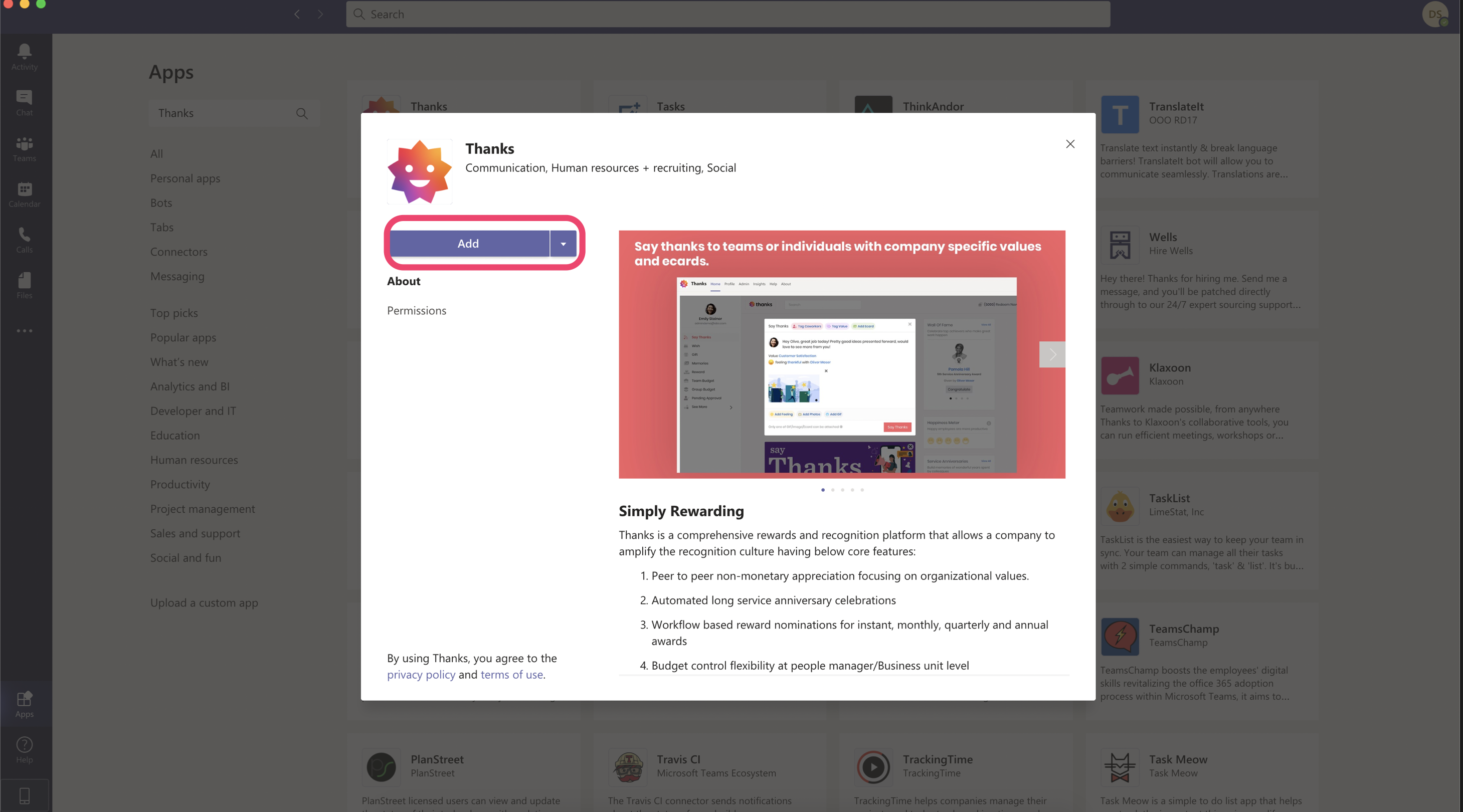
  1. Log in to your Teams account and click on the Apps icon in the left menu bar.
  2. Search for Thanks in the App Store and click on the application.
  1. Click on the Add button to add Thanks application to your personal tab.

Once Thanks is added to the tab, you are ready to access the application without moving out of Teams.

Add Thanks app to the Microsoft Teams (Admin)

Office 365 admin can add Thanks application at company level for all the MS Team users in the organization. Follow the below steps:

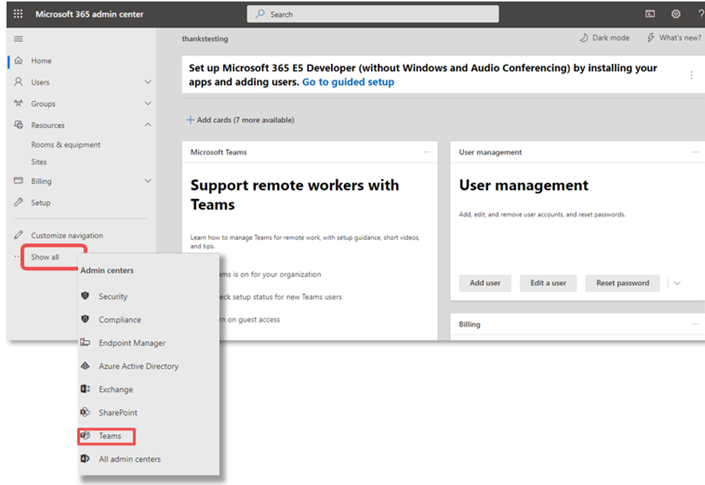
  1. Go to Office 365 Admin Center.
  2. Click on Show All in the left menu bar and select Teams.
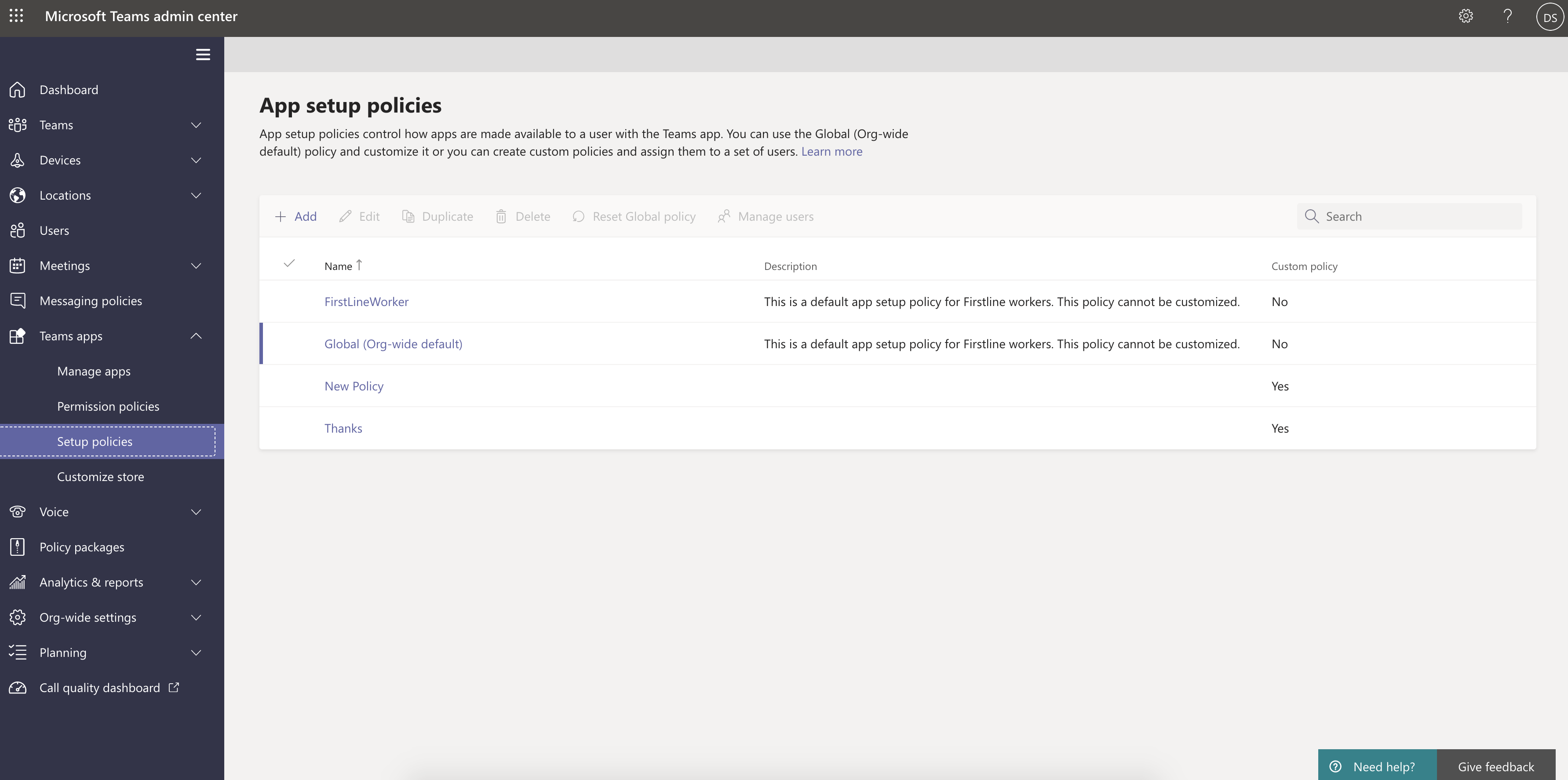
  1. Click on Teams App in the menu bar and select Setup Policies from the drop-down list.

You can either select an existing policy or create a new one. To read more about policies, click here.

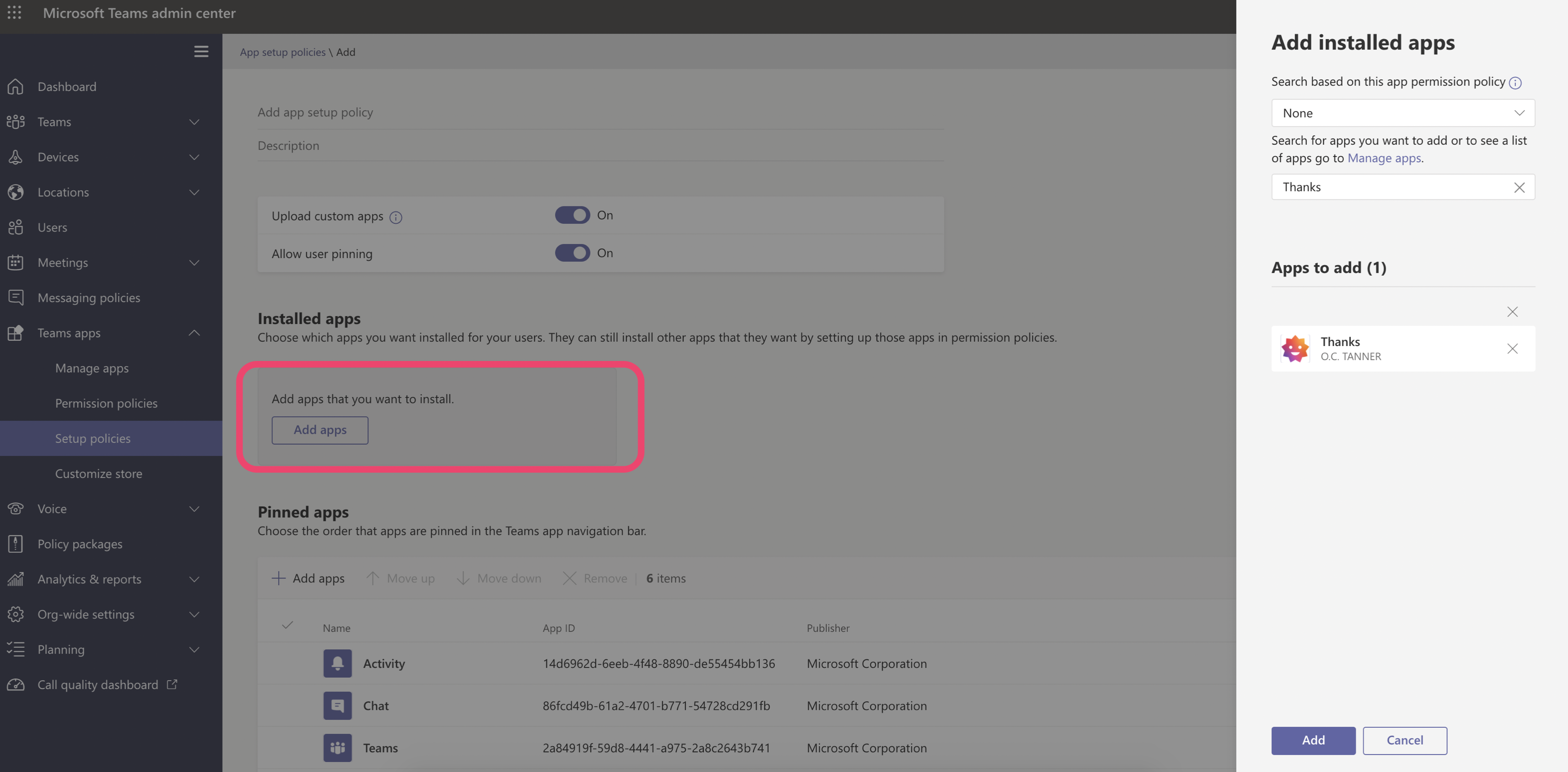
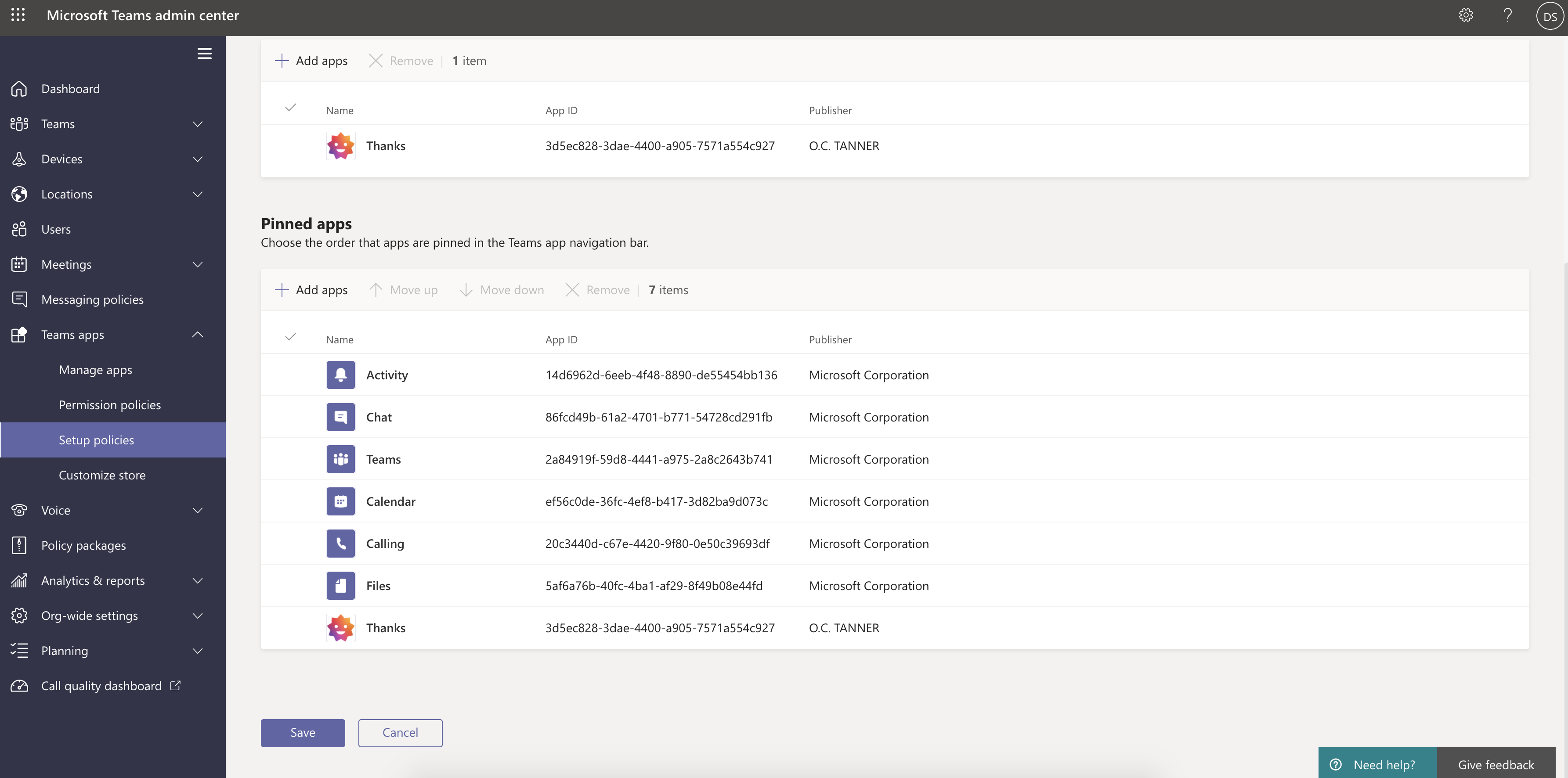
  1. After selecting a Policy, click on Add Apps button in the Installed apps section. Search for Thanks app and hit the Add button.
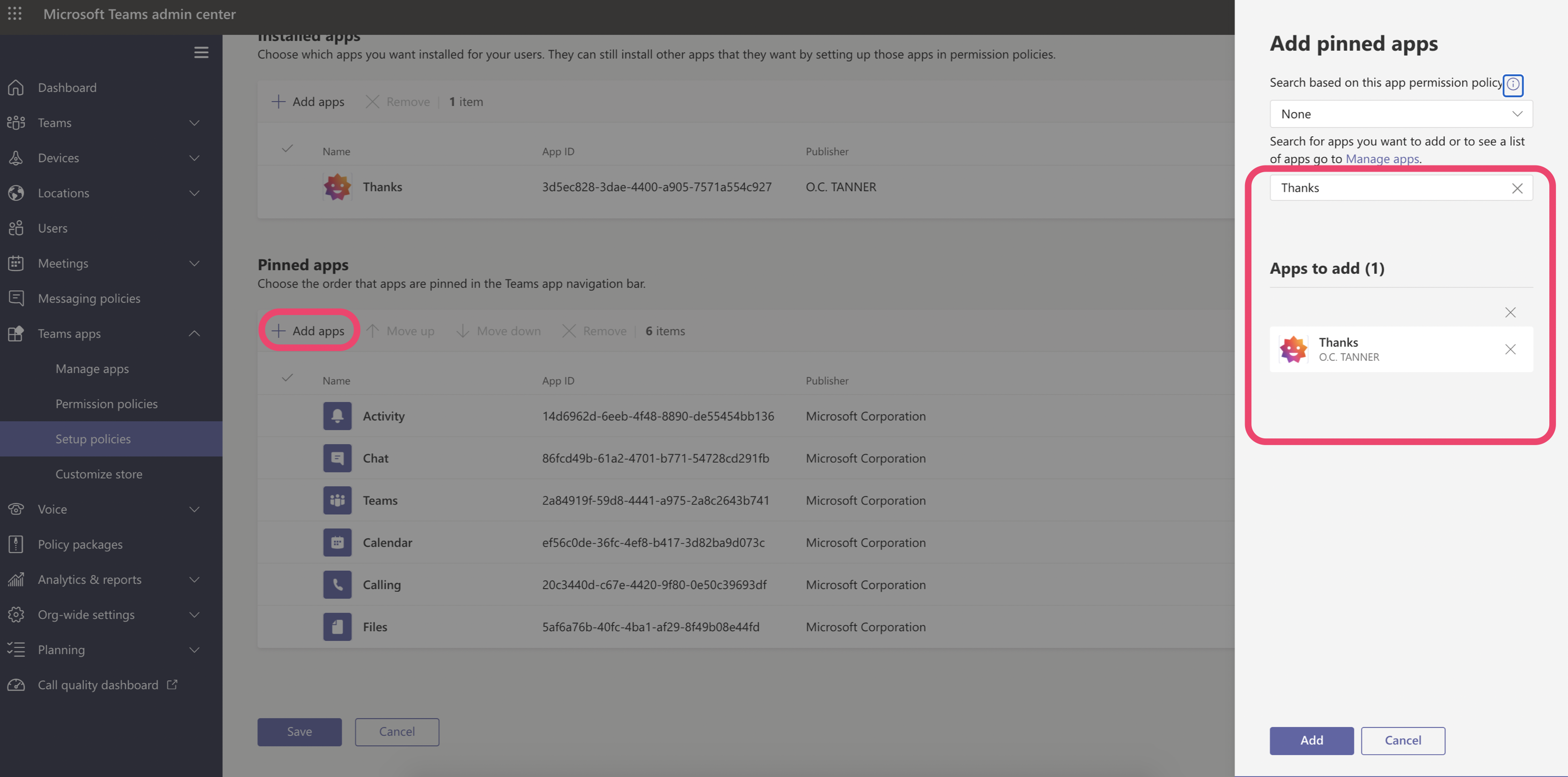
  1. To pin Thanks in the Teams app navigation bar, click on Add apps in the Pinned Apps section. Search for Thanks and click the Add button.
  1. Go to the bottom of the page and click on the Save button.

Review Permissions and Consent

Admins while managing apps for the organization can use app permission and set up policies to configure what apps will be available for users.

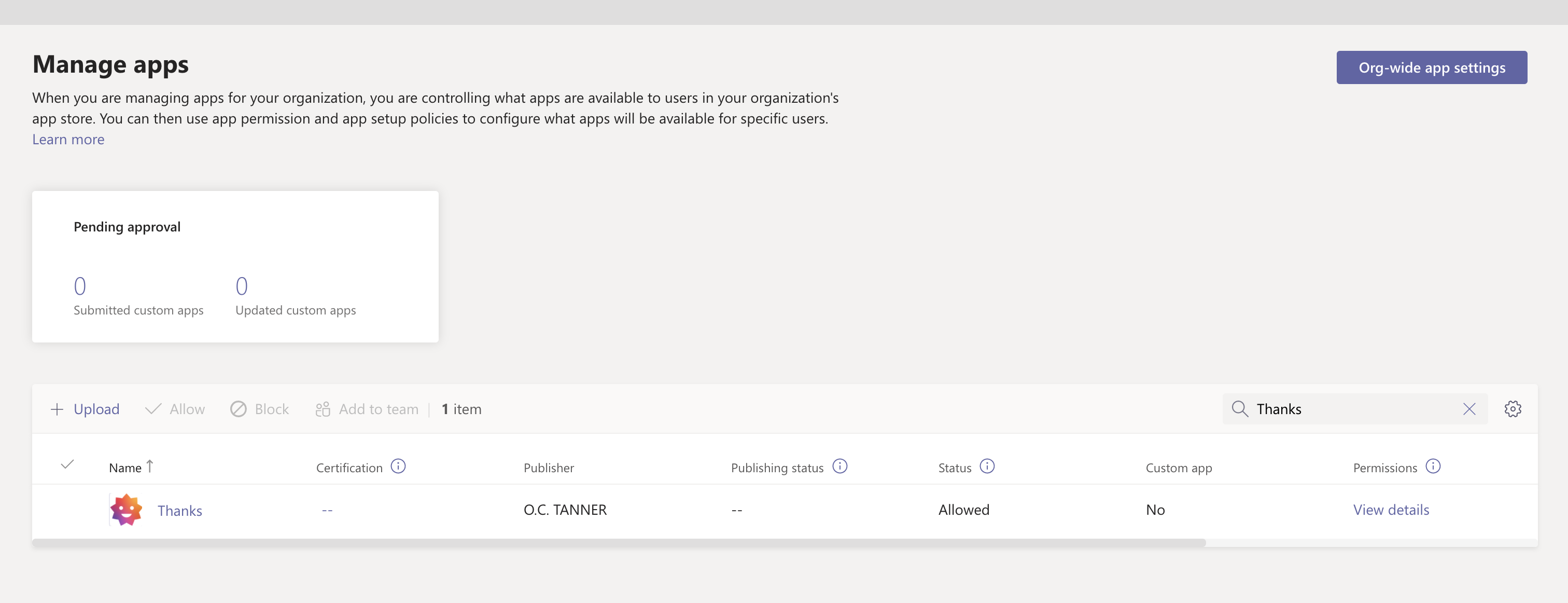
Use the link below to review app policies for Thanks: https://admin.teams.microsoft.com/policies/manage-apps

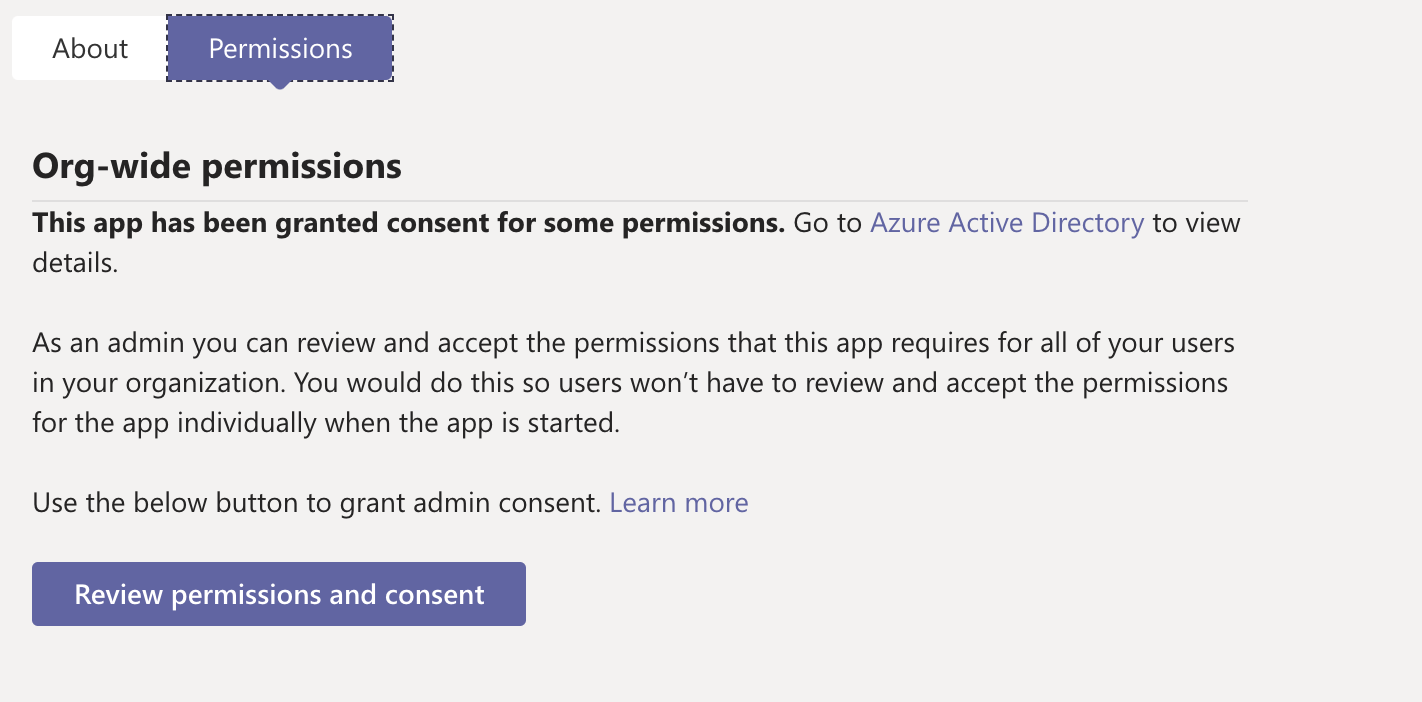
  • Search for Thanks app in the search bar.
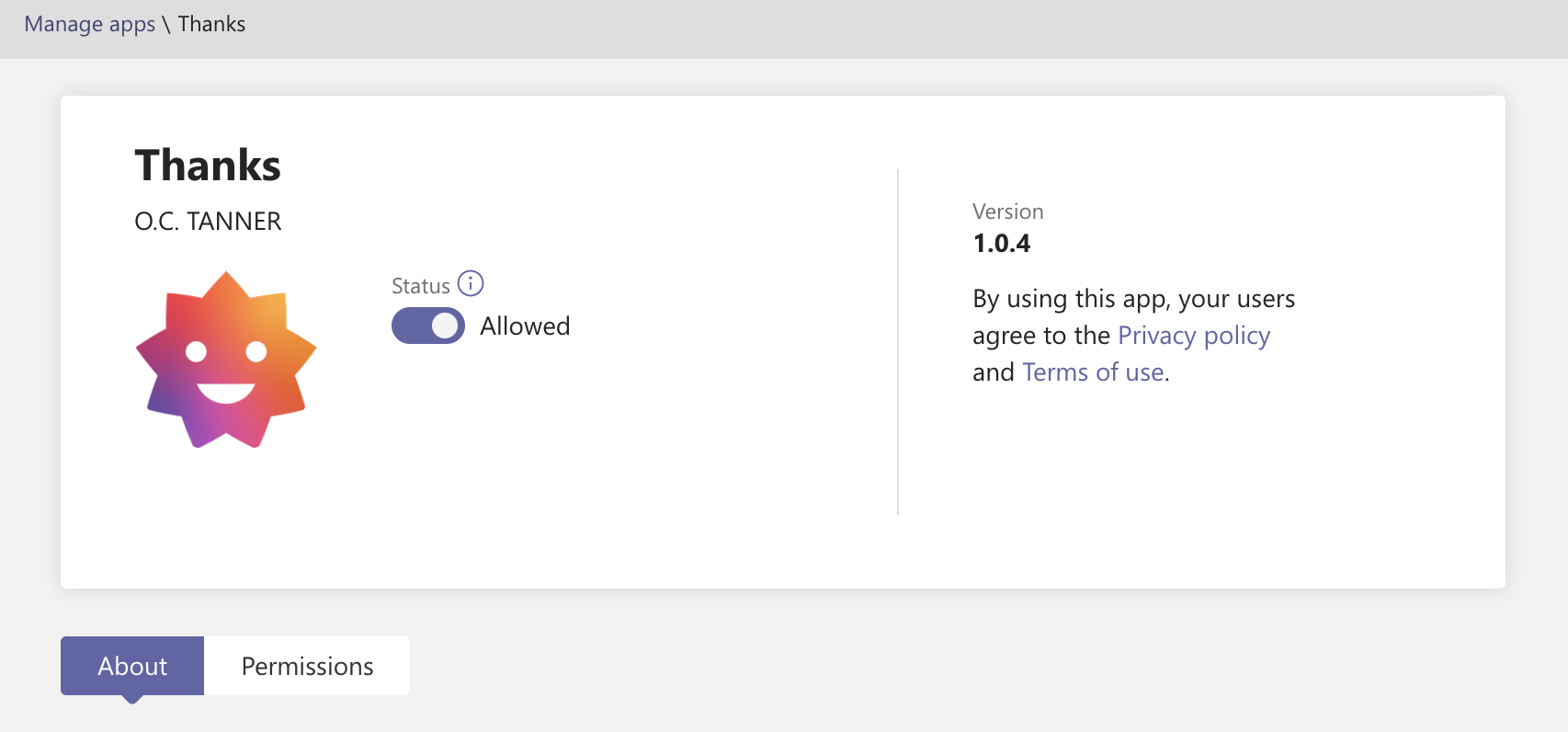
  • Click on Permissions.
  • Click on Review permissions and consent. Post authentication, you can review and grant permissions.

To learn more about app permissions, click here.